
Multiple options (Color x Style) Rubik Combined Listings Swatch
Many products come in more than one option. A pair of boots is sold in several colors (brown, black, green, yellow) and also in two styles (low and high). A t-shirt is sold in several colors and several fabrics. A sofa is sold in different fabrics and different sizes.
Rubik Combined Listings Swatch supports this out of the box. On the product page, each option gets its own row of swatches. A shopper can pick a color on one row and a style on the other, and the rows stay in sync with the combinations that exist in your store.
See a live demo of multi-option swatches on a boots product page.
Video walkthrough
A short tour of the same setup applied to a store that sells rugs in different colors and sizes, including the backend configuration and the resulting product and collection pages.
What shoppers see
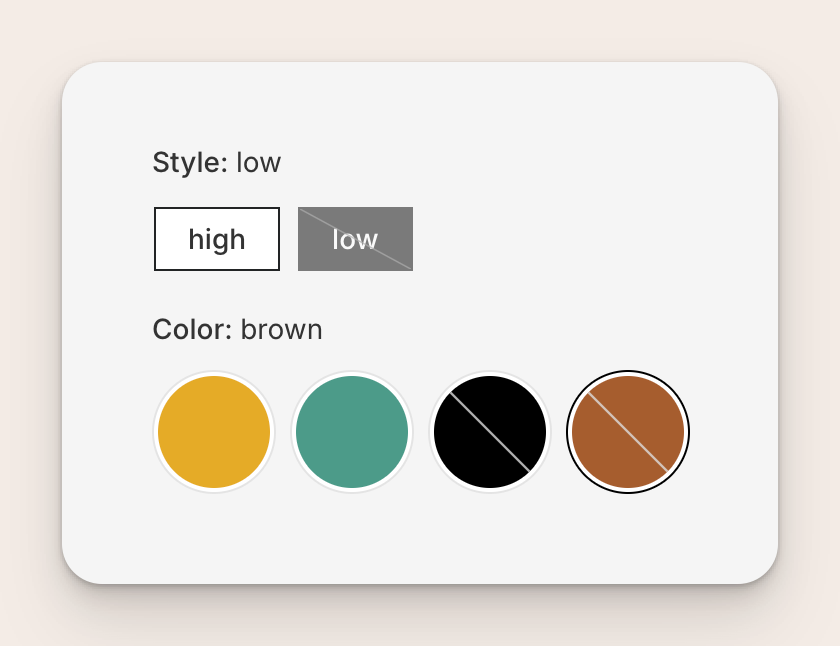
On a product page for boots, a shopper sees two rows:
- A Style row with two buttons: low and high.
- A Color row with color circles: yellow, green, black, brown.
Each row works like a regular swatch: click a swatch and the shopper is taken to the matching product. The color they already picked stays the same when they switch the style, and the style stays the same when they switch the color.
How you set it up
The idea is simple: you create one product group per option. For the boots example you create two groups, and the same products belong to both.
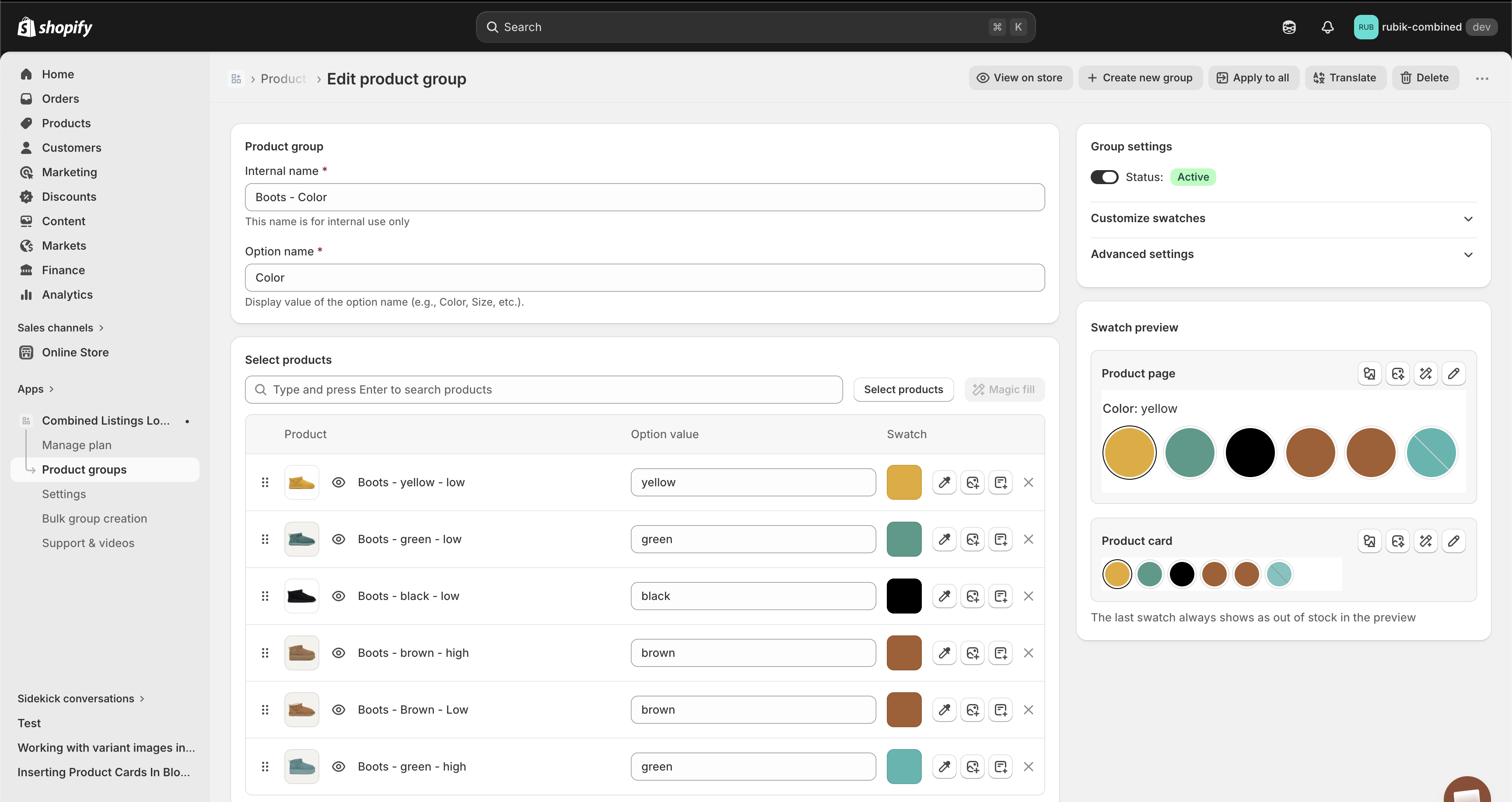
- A Color group: every boot product is in it, and each one gets a color value like yellow, green, black, or brown.
- A Style group: the same boot products are in it again, but this time each one gets a style value like low or high.
The app uses the option name of each group (the word you typed in the Option name field) as the label for the row on the storefront. No extra configuration is needed.
Step 1: Create the Color group
In the app, open Product groups and click Create new group. Set the Option name to Color, add all the boot products, and give each one a color value and a swatch color.
Step 2: Create the Style group
Click Create new group again. Set the Option name to Style, add the same boot products, and give each one a style value (low or high). You can leave the swatch color empty so the app renders plain text buttons instead of colored circles.
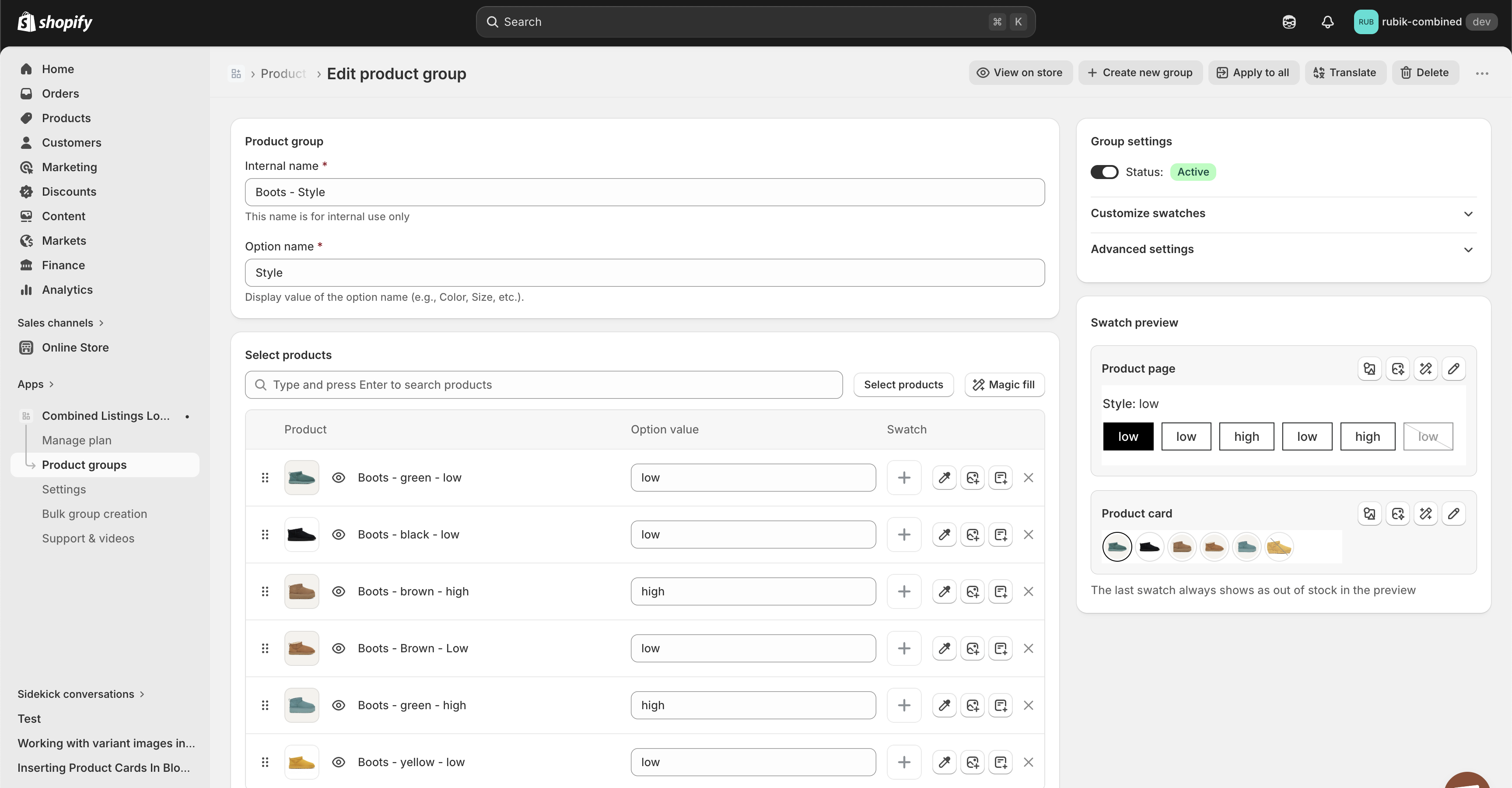
Tip: Use the same spelling for the same value across products. Capitalization does not matter (Low and low are treated as the same value), but a typo like lw vs low would be treated as two different values and break the cross-filter.
Step 3: Open the product page
Once both groups are active, open any of the boot products on your storefront. Two rows of swatches appear, one for Color and one for Style. That is it.
Only real combinations are shown
When a product belongs to two or more groups, the app keeps the swatch rows in sync with what you actually sell, so shoppers do not end up on a combination that does not exist.
Example. Imagine a shopper is on the brown low boots page:
- The Style row only shows styles that exist in brown. If you do not sell a brown high boot, the high swatch is hidden while the shopper is on a brown product.
- The Color row, the first row on the page, keeps showing every color. That is deliberate: the first row is the shopper's way out of a combination, so it is never filtered away. Clicking a color that does not come in low takes them to that color in a style it does come in.
On collection pages and product cards every row is filtered, so the swatches shown on a card always match real products.
Cross-filter the first group
If your catalog is sparse, with many colors and many sizes but only some of the combinations actually existing, that silent switch can surprise shoppers, because both the size and the kind of product can change in one click. Turn on Cross-filter the first group in Settings → Multiple option settings and the first row marks the values that do not combine with the current selection: they are dimmed with a line through them, but stay visible and clickable. Shoppers can still choose them, and the app switches the other option for them, while it stays obvious which combinations are real.
The setting is off by default and only affects product pages. It does not change product cards: as described above, cards already filter every row down to real combinations.
By default the crossed-out values keep their place in the row. If you would rather have them out of the way, turn on Push out-of-stock swatches to the end in Settings: it moves them past the sold-out ones, so shoppers see what they can buy first. See the sorting guide.
Different display order for product pages and product cards
Each group has two separate display order fields: one for the product page and one for product cards (on collection pages, search results, and featured product sections). This lets you show the rows in a different order depending on where the shopper is looking.
You set both fields under Advanced settings on each group. Lower numbers display first.
For the boots example we want Style to appear first on the product page and Color to appear first on product cards. That means:
- On the Style group: Display order on product page = 1, Display order on product card = 2.
- On the Color group: Display order on product page = 2, Display order on product card = 1.
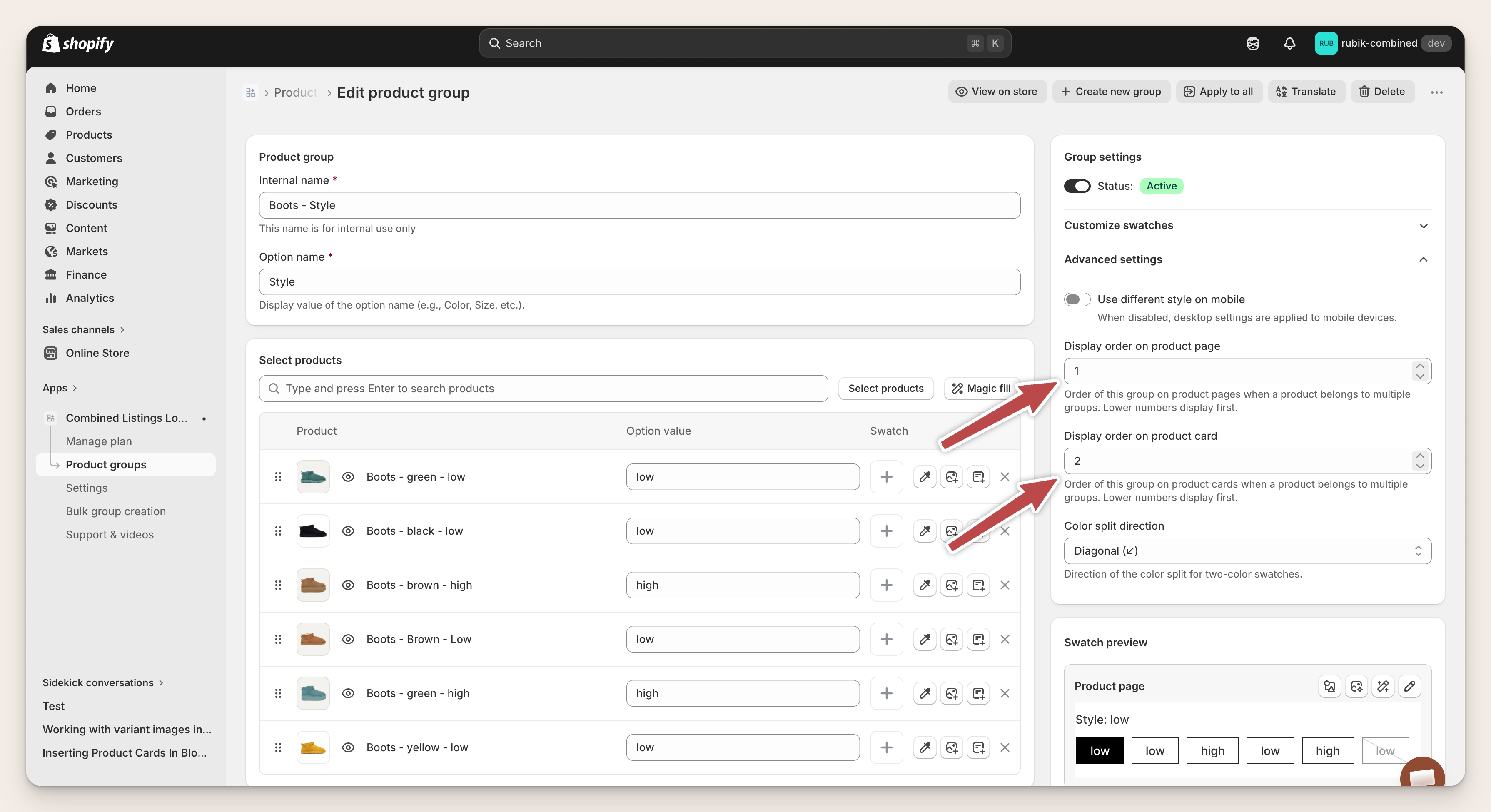
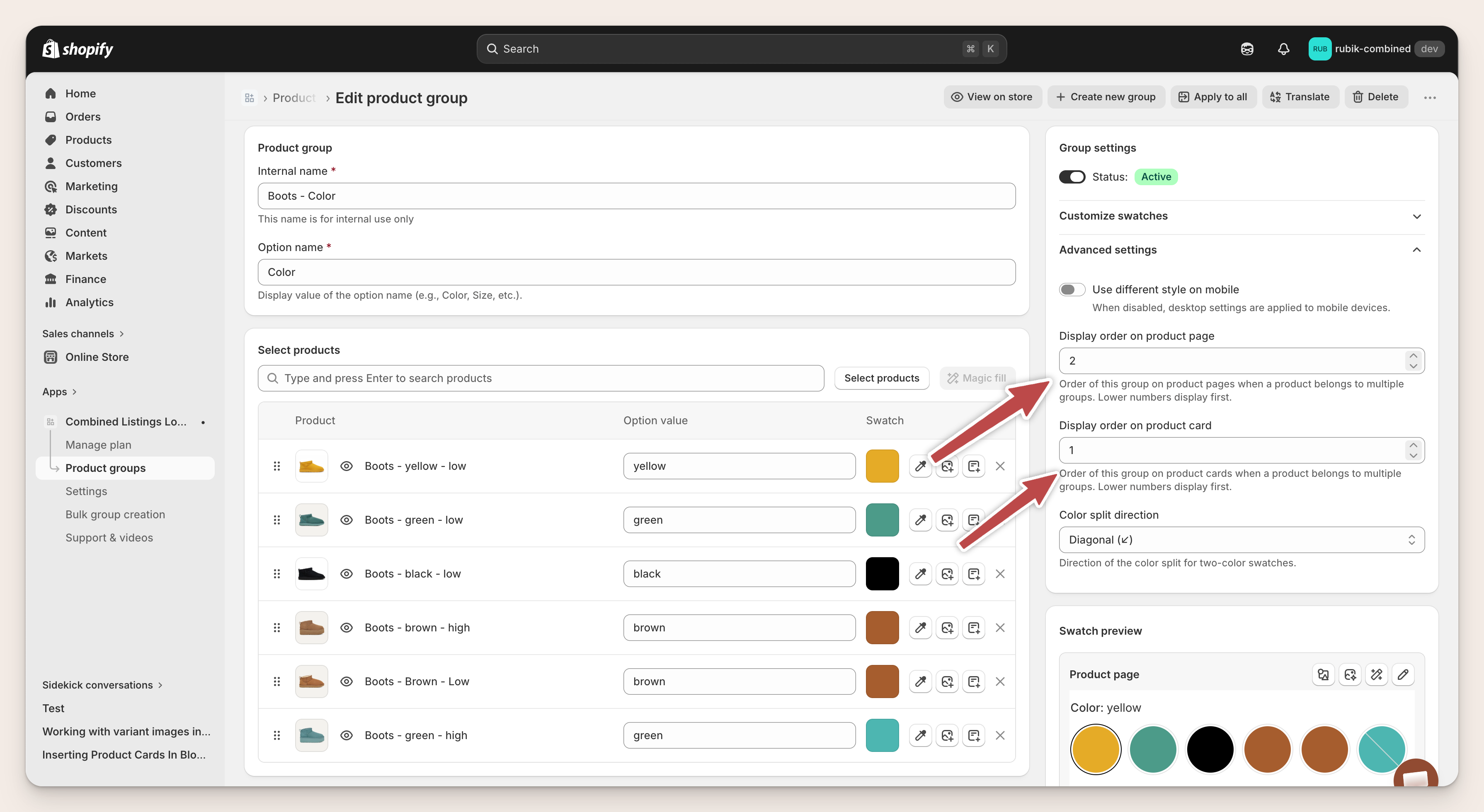
Why this choice? The shopper who opens a product page has already picked a color (they clicked a specific product from a collection), so switching the style is the more useful next action: we put Style first. On product cards only one group is shown to keep cards compact, so the group you put first is the one the shopper sees on the card. Showing colors there gives the shopper a quick preview of what the product is available in.
The result on a collection page looks like this:
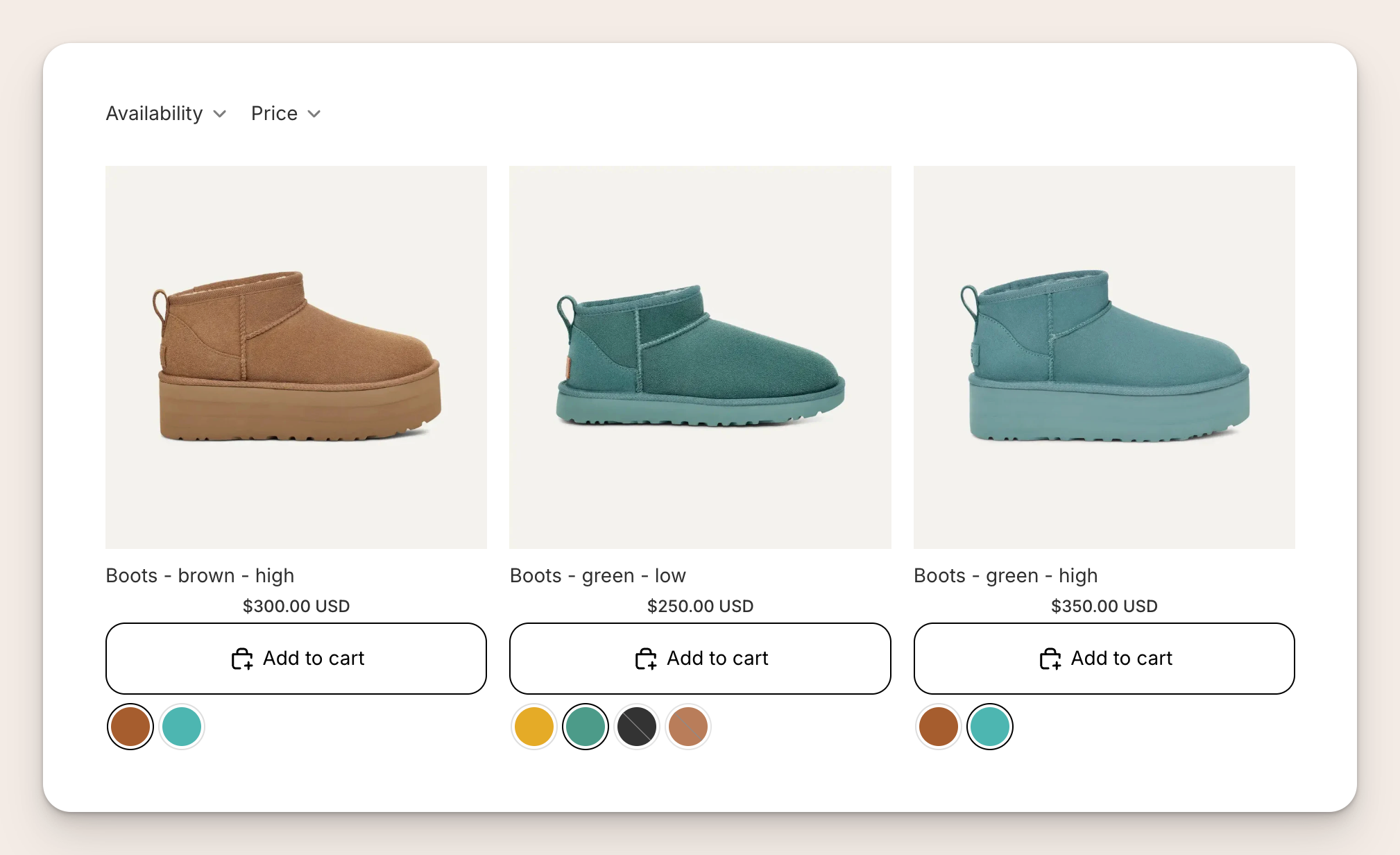
Notice how the high-style cards (Boots - brown - high and Boots - green - high) only show two color swatches, because only two colors are available in high. The low-style card (Boots - green - low) shows all four colors, because all of them are available in low. The shopper always sees exactly what they can buy.
When should I use this?
Use this setup whenever your products come in more than one option and you sell each combination as its own Shopify product. Common examples:
- Color and size: t-shirts, shoes, and hats sold as a separate product for each color and each size.
- Color and style: boots in low and high, bags in tote and crossbody, jackets in short and long.
- Color and material: sofas in leather and fabric, phone cases in silicone and leather, watch bands in metal and leather.
- Size and material: rugs in different sizes and materials, notebooks in different sizes and cover types.
- Scent and size: candles and perfumes in different scents and different jar or bottle sizes.
The pattern also works with three or more groups. If you sell by Color, Size, and Material, you create three groups and the storefront shows three rows of swatches. The "only real combinations" filter applies across all of them at once.
Things to keep in mind
- One Shopify product per combination. Every unique combination needs its own product in Shopify. Brown low and brown high are two separate products, not one product with variants. This is what lets each product keep its own URL, images, price, and SEO.
- Include both values in the product title if you can. A title like Boots - brown - low makes it easier for you to find the product in the admin. It also lets the app's bulk group creation detect both groups automatically from titles.
- Style each row the way you want. Every group has its own visual settings. You can render Color as color circles and Style as text buttons on the same product page.
Frequently asked questions
Can a single product belong to two groups at the same time?
Yes. That is exactly how this feature works. You add the same product to a Color group and to a Style group, each with its own option name and its own value for that product.
Do I need to use variants in Shopify?
No. Each combination is a separate Shopify product. This is why the app is called Combined Listings: it combines separate products into a single visual experience on the storefront, without merging them into one product with variants. Each product keeps its own URL, images, price, and SEO.
What if I do not have every combination in stock?
Missing combinations are hidden automatically from the second row down. If you do not sell yellow high, the high swatch does not appear while the shopper is on the yellow product. You do not need to configure anything extra. The first row always keeps all of its values so shoppers can switch away freely. If you want impossible combinations marked there too, turn on Cross-filter the first group in Settings.
Can I use more than two options?
Yes. Create one group per option (for example Color, Size, Material) and each one renders as its own row on the storefront. The "only real combinations" filter works across all of them.
Do I need to edit my theme or write code?
No. The app renders the swatches automatically on product pages, collection pages, featured product sections, and search results. Creating the groups in the app is all that is required.
Related guides
- Getting started: install the app and create your first group.
- Bulk group creation: create many groups at once from titles, tags, or metafields.
- Use cases: more merchant scenarios and live demos.
- Visual settings guide: style each row independently.